Build an easy round trip flight tracker. In five steps you’ll pull live fares into a sheet with Apipheny and turn it into a daily price tracker. We used London to Los Angeles, the same route as our one way flight tracker tutorial, but as one round trip (both legs priced together, one total).


Step 1: Install Apipheny

If you haven’t already, install the Apipheny add-on from the Google Workspace Marketplace. Click Extensions > Add-ons > Get Add-ons, then search “Apipheny”
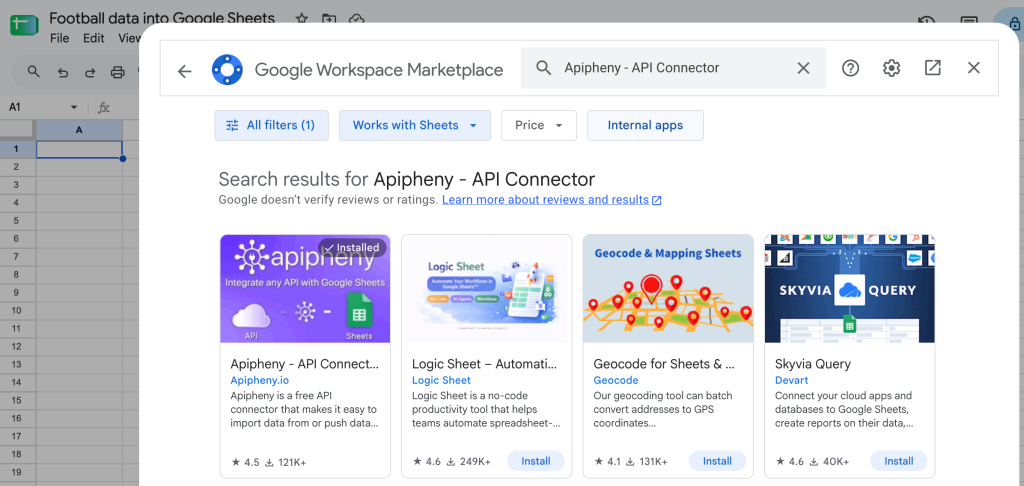
Apipheny extension in the Google Web Store

After installation:

  1. Open Google Sheets.

  2. Click Extensions > Apipheny > Import API.

  3. The Apipheny sidebar will open on the right side of your spreadsheet.

Step 2: Get your API token

Subscribe to Google Flights Live API on RapidAPI and copy your x-rapidapi-key. There’s a free pack with 10 requests a month to test with.
 

Step 3: Set up the request.

Open the sidebar from Extensions > Apipheny – API Connector > Import API. Set Method to POST, paste the URL into API URL Path and the JSON into Body (Content Type stays application/json). 

Then open Headers and add the two below with + Add New Header.

Method: 

POST

API URL Path: 

https://google-flights-live-api.p.rapidapi.com/api/google_flights/roundtrip/v1

Header 1: 

x-rapidapi-key = YOUR_RAPIDAPI_KEY

Header 2:

x-rapidapi-host = google-flights-live-api.p.rapidapi.com

Body: 

{"from_airport":"LHR","to_airport":"LAX","departure_date":"2027-05-13","return_date":"2027-05-20","limit":3}

3. Run it

Click Run and confirm. I ran it on 2026-10-19 and got 3 rows, one per itinerary, with every field in its own column. All three were nonstop round trips with a total_price of $706 (the first one on Virgin Atlantic). Each row also carries Google’s own read on the fare: price_range_in_relation_to_other_periods said typical, with price_insights_low and price_insights_high at 620 and 760. You also get airlines, times, durations, stops and a buy_link to Google Flights. Prices move, so yours may differ.

4. Make it a tracker

Add a tab called Dates, set A2:B2 to Format > Number > Plain text, and type the departure date in A2 and the return date in B2 (YYYY-MM-DD). Then paste this as the body, with cell references in place of the two dates:

{"from_airport":"LHR","to_airport":"LAX","departure_date":"{{{Dates!A2}}}","return_date":"{{{Dates!B2}}}","limit":3}

Add one more tab, Price history, and keep it open. Under Settings tick Append Mode and Include Date, click Run, then Save the request. With Append Mode on, Apipheny adds each run’s rows to the end of the tab, and Include Date puts the date in column A, so the tab keeps a history instead of being overwritten. The saved request writes to whichever tab was open when you saved it.

5. Schedule it

On the Schedule tab click Create Scheduled Request, pick your saved request, set Frequency to Every Day and a time, and Save. The schedule writes to the tab the saved request remembers, here Price history.

Change A2 and B2 whenever you want to watch other dates.


Want a hand putting a sheet together? Email us and we’ll put our devs on it for you.